
Select Special
v1.2for Google SheetsFind cells by value, formula, note, formatting, or relation — then filter and act on them without writing a formula.
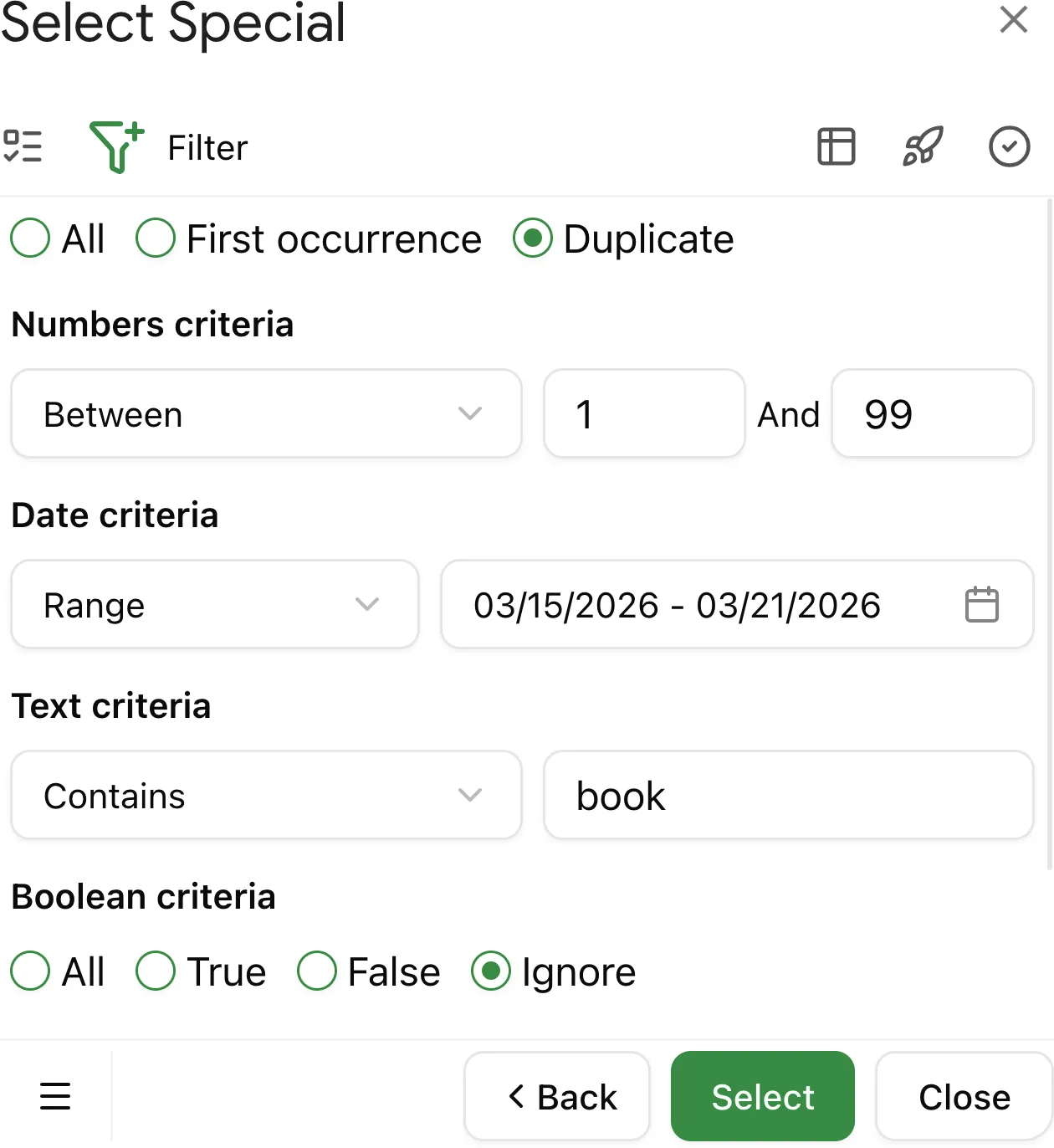
Why use filters
When searching for cells in large spreadsheets, you often get hundreds or thousands of results. Filters let you narrow down results to exactly what you need.
For example, instead of selecting all matching cells, you can select only:
- Numbers greater than 100
- Text that contains "email"
- Dates within a specific range
- Only TRUE or only FALSE values
- Specific error types like #REF! or #DIV/0!
- Only duplicate values
Filters work with most Select Special actions, including finding entered values, formulas, precedents, dependents, and more.
Filters are available with Select Special Advanced subscription. Basic selection via "Select All" remains available in the free version.
Available filters
Select Special provides 6 filter types that can be combined:
| Filter | Description | Use case |
|---|---|---|
| Numbers | Filter by numeric value or range | Find values > 1000, between 0 and 100, negative numbers |
| Text | Filter by text content or length | Find cells containing "TODO", starting with "ID-" |
| Dates | Filter by date or date range | Find dates before deadline, within Q1 2024 |
| Boolean | Filter TRUE/FALSE values | Find only TRUE or only FALSE cells |
| Errors | Filter by error type | Find all #REF! errors, any error |
| Duplicates | Filter by first occurrence or duplicates | Find first occurrences only, or duplicates only |
How to apply filters
1. Start a search action
Select your range and choose any search action (e.g., "Entered values", "Formulas", "Precedents").
2. Configure your search options
Select the types of values you want to find (numbers, text, dates, etc.).
3. Open the filter step
After configuring your search, click Next to open the filter configuration page.
4. Set your filter criteria
Configure one or more filters based on your needs. Each filter type appears as a separate section.
5. Apply and select
Click Select to find cells matching both your search criteria and filter conditions.
Filter types
Numbers filter
Filter cells containing numeric values.
| Operator | Description | Example |
|---|---|---|
| Show all | No filtering (default) | — |
| Ignore | Exclude all numbers | — |
| Equal to | Exact match | = 100 |
| Not equal to | Exclude exact value | ≠ 0 |
| Greater than | Values above threshold | > 1000 |
| Greater than or equal | Values at or above | ≥ 50 |
| Less than | Values below threshold | < 0 |
| Less than or equal | Values at or below | ≤ 100 |
| Between | Values in range (inclusive) | 10 - 20 |
| Not between | Values outside range | Not 10 - 20 |
| Positive | Only positive numbers | > 0 |
| Negative | Only negative numbers | < 0 |
Text filter
Filter cells containing text values.
| Operator | Description | Example |
|---|---|---|
| Show all | No filtering (default) | — |
| Ignore | Exclude all text | — |
| Contains | Text includes substring | Contains "error" |
| Does not contain | Text excludes substring | Not contains "test" |
| Starts with | Text begins with | Starts with "ID-" |
| Does not start with | Text doesn't begin with | Not starts with "#" |
| Ends with | Text ends with | Ends with ".com" |
| Does not end with | Text doesn't end with | Not ends with "!" |
| Equal to | Exact text match | = "Complete" |
| Not equal to | Exclude exact text | ≠ "N/A" |
| Length between | Text length in range | Length 5 - 10 characters |
| Length not between | Text length outside range | Length not 0 - 3 |
Text matching is case-sensitive. "Error" and "error" are treated as different values.
Dates filter
Filter cells containing date values.
| Operator | Description | Example |
|---|---|---|
| Show all | No filtering (default) | — |
| Ignore | Exclude all dates | — |
| Equal to | Exact date match | = 01/15/2024 |
| Not equal to | Exclude specific date | ≠ 12/31/2023 |
| Before | Dates earlier than | Before 01/01/2024 |
| After | Dates later than | After 06/30/2024 |
| In range | Dates within period | 01/01/2024 - 03/31/2024 |
| Not in range | Dates outside period | Not in Q1 2024 |
Date filtering uses your spreadsheet's timezone settings.
Boolean filter
Filter cells containing TRUE or FALSE values.
| Option | Description |
|---|---|
| All | Show all boolean values (default) |
| True | Show only TRUE values |
| False | Show only FALSE values |
| Ignore | Exclude all boolean values |
Errors filter
Filter cells containing formula errors.
| Option | Description |
|---|---|
| Any error | Show all error types (default) |
| #NULL! | Incorrect range reference |
| #DIV/0! | Division by zero |
| #VALUE! | Wrong value type in formula |
| #REF! | Invalid cell reference |
| #NAME? | Unrecognized formula name |
| #NUM! | Invalid numeric value |
| #N/A | Value not available |
| Ignore | Exclude all errors |
Duplicates filter
Filter values by their occurrence within your selection.
| Option | Description |
|---|---|
| All | Show all values (default) |
| First occurrence | Show only first instance of each |
| Duplicates | Show only values that appear more than once |
Use "First occurrence" to keep only the first instance of each value. Use "Duplicates" to find repeated values for cleanup.
Combining multiple filters
You can apply multiple filters simultaneously. Each filter only checks values of its own type and ignores others:
- Numbers filter checks only numeric values
- Text filter checks only text values
- Dates filter checks only date values
- Boolean filter checks only TRUE/FALSE values
- Errors filter checks only error values
- Duplicates filter checks all value types
When a filter encounters a value that's not its type, it simply passes that value through.
Example: Numbers > 100 + Text contains "email"
- Number
150→ Numbers filter checks (passes), Text filter skips → ✅ selected - Text
"test@email.com"→ Numbers filter skips, Text filter checks (passes) → ✅ selected - Text
"hello"→ Numbers filter skips, Text filter checks (fails) → ❌ not selected
Common combinations:
- Numbers + Duplicates → Find duplicate amounts
- Text + Duplicates → Find duplicate text entries
- Numbers + Text → Filter both numbers and text in mixed data
The Duplicates filter is special — it works across all value types and can be combined with any other filter.