
Select Special
v1.2for Google SheetsFind cells by value, formula, note, formatting, or relation — then filter and act on them without writing a formula.
Why use Select Special in Google Sheets
When working with large datasets in Google Sheets, it's easy to lose track of which cells contain manually entered data and which contain formulas.
This is where the Select Special add-on comes in. It finds and selects only the cells that contain data entered manually, so you can quickly analyze, clean up, or edit only the cells that matter.
What are manually entered values
Manually entered values, or static values, are any non-empty cells with the data you type or paste into a spreadsheet. This includes:
- Numbers: Integers, decimals, percentages, etc
- Text strings
- Boolean values:
TRUE/FALSEor checkboxes - Error values copied without formulas, for example,
#VALUE!,#REF!
See Error.Type in the Google documentation. - Dates
Unlike cells with formulas, manually entered values remain static and don't change based on calculations.
Why find manually entered values
Manually entered values are often the starting point in a spreadsheet. They feed your formulas and charts. Finding them helps you:
- Fix formatting
- Catch data-entry mistakes or outdated content
- Quickly edit or validate core spreadsheet inputs
How to find and select entered values with Select Special
If you haven't installed the Select Special add-on yet, follow this installation guide.
1. Select the range(s)
Select the range(s) of cells where you want to find manually entered values.
2. Choose the type of values to select
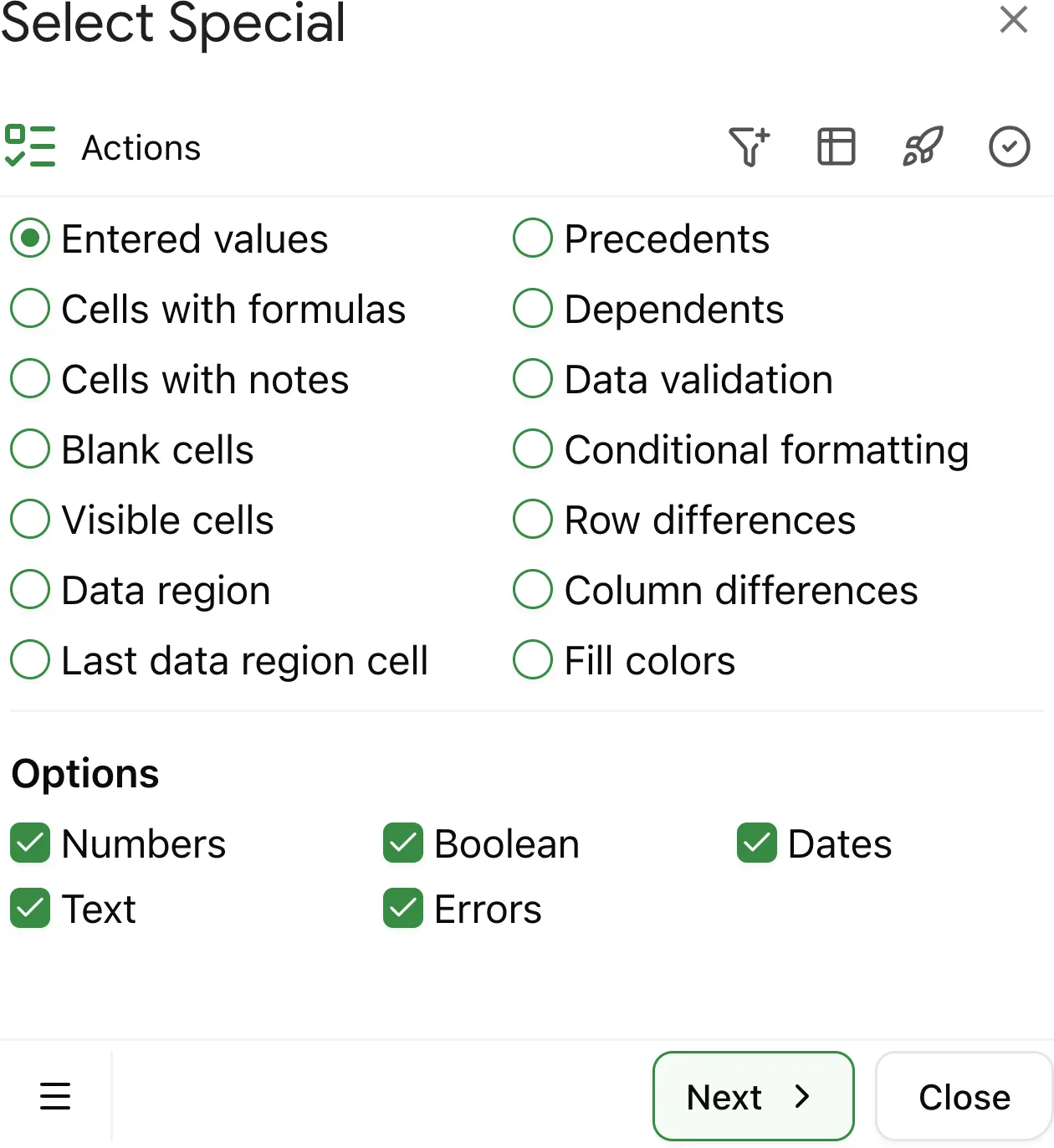
Mark the checkboxes for the data types you want to select:
- Numbers: Whole numbers, decimals, currencies, etc
- Text: Text strings
- Boolean:
TRUE,FALSE, or checkbox values - Errors: Cells displaying formula error messages but without actual formulas
- Dates
The Select Special add-on respects the cell number format.
For example, if a cell contains 123 but is formatted as text, the
Numbers option won't select it.
3. Select matching entered values
Click Select at the bottom of the add-on. It will select all manually entered cells matching your criteria.