
Select Special
v1.2for Google SheetsFind cells by value, formula, note, formatting, or relation — then filter and act on them without writing a formula.
Why use Select Special in Google Sheets
When working with complex spreadsheets, it's important to understand which cells all formulas depend on. This helps you troubleshoot errors and understand the flow of data through your sheet.
Select Special for Google Sheets helps you quickly find and select precedents — cells whose values are used in formulas.
What are precedents
Precedents are cells that your formulas depend on, those that you reference in formulas. For example, if cell C3 contains the formula =A1 + B2, then A1 and B2 are precedents of C3 because the formula in C3 uses values from A1 and B2.
Precedents are the opposite of dependents. Dependents are cells where the
formula is written — the ones that calculate something from other cells. For
example, if cell C3 contains the formula =A1 + B2, then C3 is a
dependent of A1 and B2. See How to trace dependents in Google
Sheets.
Why trace precedents
Tracing precedents in Google Sheets helps you understand where a formula gets its data from. This is useful when you want to:
- Trace relationships between cells.
- Debug formula errors by finding the source of values.
How to trace precedents with Select Special
If you haven't installed the Select Special add-on yet, follow this installation guide.
1. Select the cell with a formula
Click the cell that contains the formula whose precedents you want to find.
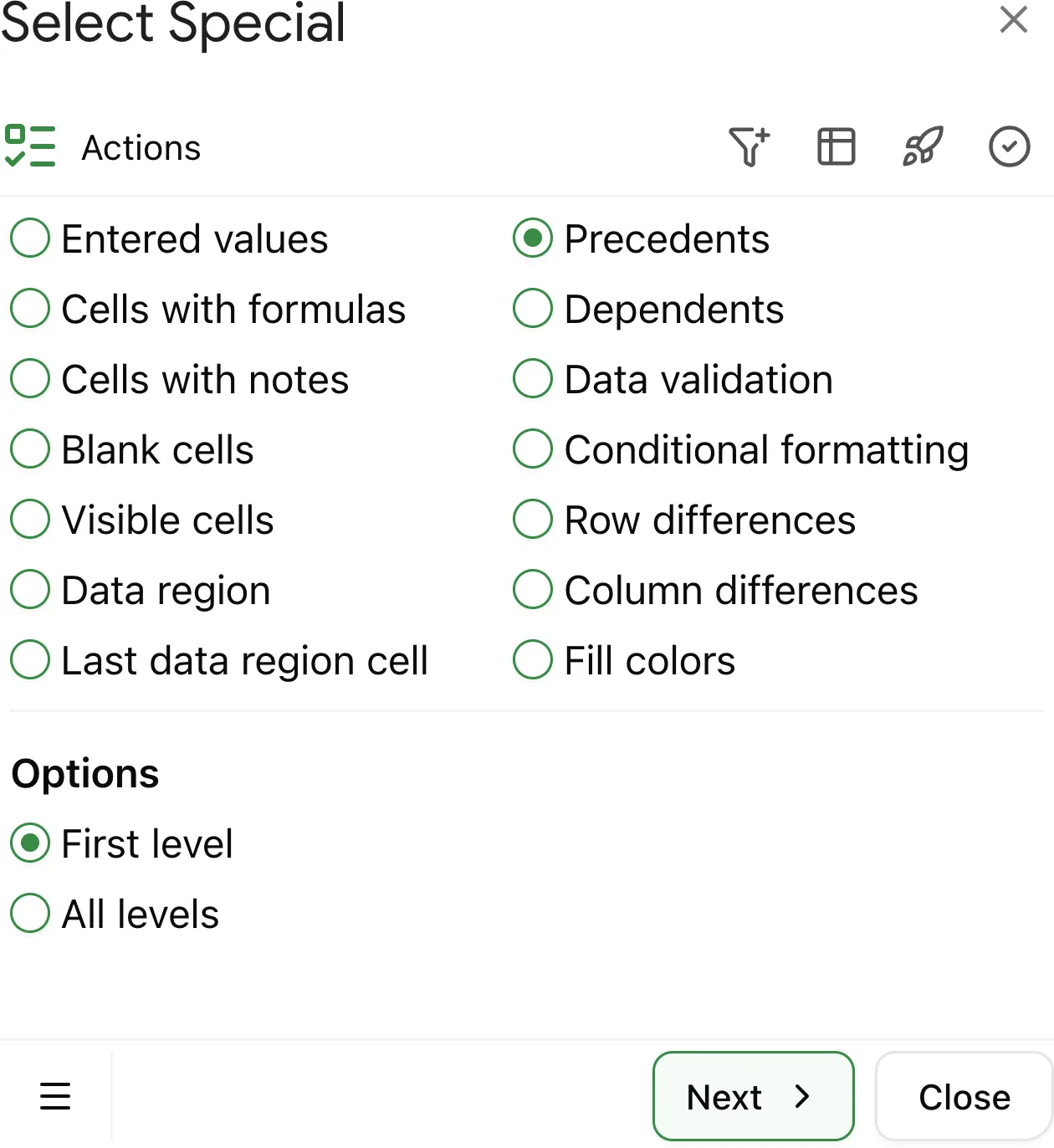
2. Choose the level of precedents
Decide how many levels of precedents to select:
- First level: Select only cells directly used in the formula.
- All levels: Select all precedent cells, even if they are not used directly. For example, if your formula uses
B2, andB2itself is calculated fromA1, bothB2andA1will be selected.
3. Select precedents
Click Select at the bottom of the add-on. It will select all dependent cells based on the chosen scope.